💡 Note: If this doesn't work for your laptop,
it's not critical to set up — don't stress!
STEP 1
Open PowerShell
What's a shell?
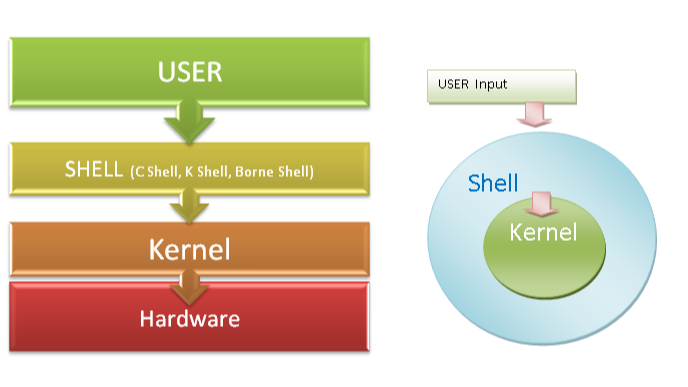
A shell
A shell is a program that acts as an interface between
you and the operating system; you type commands, and it
interprets and runs them
is a set of commands you use to interact with the
kernel
The kernel is the core of your operating system — it manages
hardware, memory, and processes directly.
.
Different operating systems use different shells.
source: LinkedIn, MOOC Course
bash — Bourne Again SHell.
The default on most Linux systems and older Macs.
Very common in open-source tooling.
zsh — Z Shell.
The default on modern Macs (macOS Catalina+).
Very similar to bash with quality-of-life improvements.
Command Prompt —
Windows' older built-in shell. Less powerful than modern
alternatives.
PowerShell —
Windows' modern shell. More powerful than Command Prompt,
and what we'll use to install WSL.
Because bash and zsh are so similar, Linux and Mac users share most
commands — which is why we're setting up WSL on Windows!
How to open PowerShell
Open the Start Menu and search for
PowerShell
If you are using a secondary account on your machine, make
sure it has adminsitrator privileges
✦ Quick Check
What is the relationship between a shell and a kernel?
Answer correctly to unlock the next
section.
STEP 2
Install WSL
Run the install command
In PowerShell, type the following command and hit Enter. This will
start installing
Ubuntu
Ubuntu is a popular, user-friendly Linux distribution. A
distribution packages the Linux kernel with software to make
a complete OS.
.
PowerShell
wsl --install
Common causes:
You might not be running PowerShell
as administrator. Try again with admin
rights
A Windows policy is blocking installation. Look at the error
message, which usually tells you what's needed
Your Windows version needs an update — run Windows Update
and try again
Call a classmate, grutor, or prof over — the error message usually
explains the fix!
Create your Ubuntu account
Once the download finishes, it'll prompt you to create a
username and password. Do this!
You'll then be inside WSL (even if it doesn't look like much
changed).
🔒 When typing your password,
nothing will appear on screen — that's normal.
It's still being registered.
Close WSL
Simply close the PowerShell window. You're done with it for now.
✦ Quick Check
Why might your password appear invisible when you type it
in the terminal?
Answer correctly to unlock the next
section.
STEP 3
Open Ubuntu
What is Ubuntu?
Ubuntu is a
Linux distribution
A Linux distribution ("distro") bundles the Linux kernel with
software, tools, and a package manager into a complete
operating system. Examples: Ubuntu, Debian, Fedora.
.
Linux is a kernel, but there are many ways to interact with it —
distributions are full operating systems built around that kernel.
Ubuntu is one of the most beginner-friendly distros.
How to open it
Find Ubuntu in the Start Menu and open it. Make sure it's
the "app" and not a web search for Ubuntu. Once it opens, you'll now be in
your Linux Environment!
If, for some reason, opening Ubuntu actually opens your default
shell or command prompt:
Close the shell or command prompt.
Try again, but this time click
"Run as Administrator."
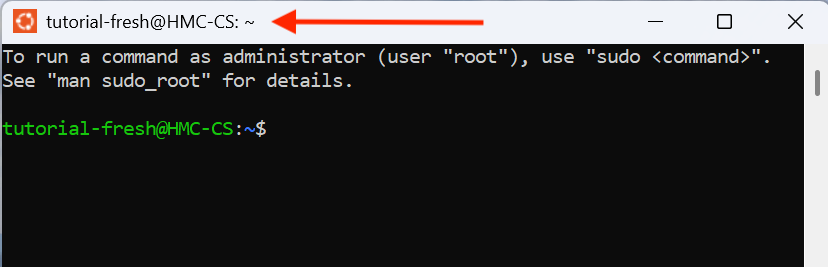
This should open the actual Ubuntu app. You can verify it's the
right app if the top shows the orange Ubuntu logo.
STEP 4
Set Up Your Shell & Learn Bash Commands
Enabling copy/paste in Ubuntu
By default, Ctrl+V doesn't paste in the terminal.
To fix it:
Right-click the Ubuntu title bar → Properties
Under Edit Options, check
"Use Ctrl+Shift+C/V as Copy/Paste"
Click OK
After that, use Ctrl+Shift+V to paste into the terminal.
First commands to try
Check which shell you're using:
bash
echo $SHELL
The echo command prints text or a variable's value to
the terminal. Here, it tells you what shell is active.
Keep Ubuntu up to date:
bash
sudo apt update && sudo apt upgrade
What do sudo, apt update, and apt upgrade each do?
sudo — "superuser do." Runs the command with administrator
(root
The "root" user is the all-powerful admin account on Linux systems.
sudo lets you borrow that power for a single command.
) privileges.
apt update — Refreshes the list of available software
packages from the internet.
apt upgrade — Actually installs the newer versions of any
outdated packages.
The && runs both commands in sequence. If the first succeeds,
the second runs automatically.
Some more basic commands to get you started!
Command
What it does
ls
Lists contents of current directory
ls -a
Lists all contents including hidden files
(the flag -a = "all")
pwd
Stands for print working directory, which shows your current path
mkdir folder_name
Creates a new folder/directory
cd folder_name
Moves you into the folder
cd ..
Go up to the parent directory
cd ~
Go to your home directory (/home/[username])
touch file_name.txt
Create a new empty file. You can choose the file type
rm file_name
Removes a file. There's no trash/recycle bin — deletions are
permanent, so use it carefully!
rm -i file_name
Removes a file, but with caution. This will prompt you to confirm
before deleting each file. It's good to use if you want to be
careful (-i = "interactive")
rm -rf folder_name
This is the typical way to remove a directory and all its
contents. Use with caution! There are some safeguards to removing
directories since you cannot remove them withouth certain flags
(-r = "recursive" and -f = "force")
cat file_name
Short fo "concatenate." This displays the contents of a file
directly in the terminal. Most commonly used to quickly read a
file without opening an editor
>
The > operator redirects output into a file, creating
it if it doesn't exist and overwriting it if it
does
Practice checklist: do these!
Click each item as you complete it:
✓
Run echo $SHELL and see the output of $SHELL
✓
Run sudo apt update && sudo apt upgrade
✓
Run ls and then ls -a
✓
Run pwd to see your home path
✓
Run mkdir workshop then ls
to confirm it appeared
✓
Run cd workshop to enter it
✓
Run touch workshop.txt in the workshop directory to create
a file
✓
Run echo "Hello, world" > workshop.txt to overwrite the
file with "Hello, world"
Terminal game (for more practice)
OPTIONAL
Make sure you're in your workshop directory, then run:
Then ls to confirm it worked, cd into
the new directory "terminal_game", and run cat README.md to
get started. The game uses the commands you just learned!
✦ Quick Check
You're inside /home/tutorial/workshop and want to
return to /home/tutorial. Which command do you use?
Answer correctly to unlock the next section.
✦ Challenge Check
If rm -rf means to forcefully recurse through a directory
and delete it, then how would you remove a directory with
interactive prompts (i.e. caution)? Also, the order of flags doesn't
matter! -irf is the same as -rif or -fir.
Answer correctly to unlock the next section.
STEP 5
Understand Your File System
WSL creates a *virtual hard disk* that lives inside Windows. Your
Linux files are in a separate space from your Windows files. Click
through to visually see where your files are.
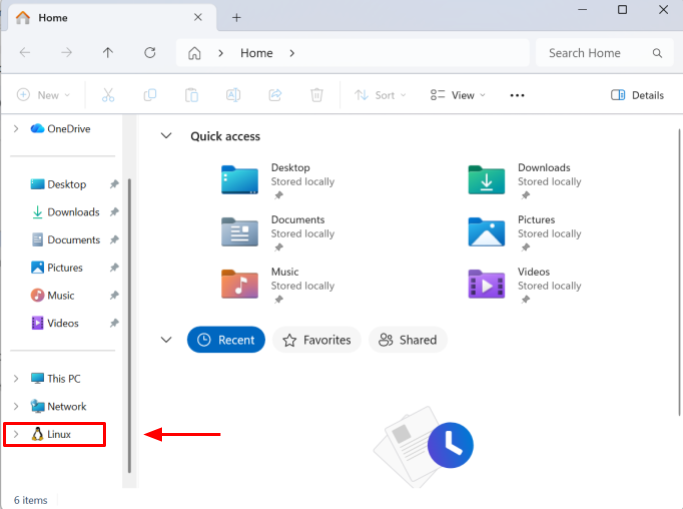
Open File Explorer
In the left pane, scroll down to Linux
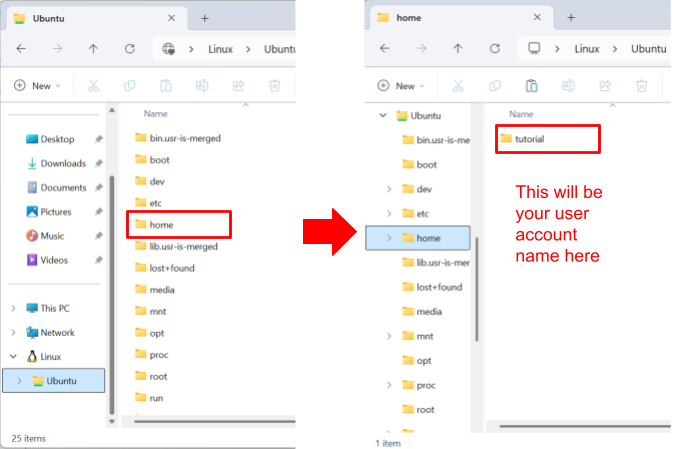
Click into
Ubuntu → home → [your username]
That folder is your ~ home directory — the same
place you land when you open Ubuntu.
Your Windows files live at:
path
/mnt/c/Users/Windows_account_name
To navigate there:
bash
cd /mnt/c/Users/Windows_account_name
✦ Quick Check
Where are your Ubuntu home files located in Windows
File Explorer?
Answer correctly to unlock the
next section.
STEP 6
(For Students using VS Code) Set Up VS Code with WSL
This step assumes you have VS Code installed. You can skip this
section by clicking on all quiz answers until you get it right.
We'll do this with the "workshop" directory that you made.
In VS Code, click on Open Folder
(can also be found in File → Open Folder)
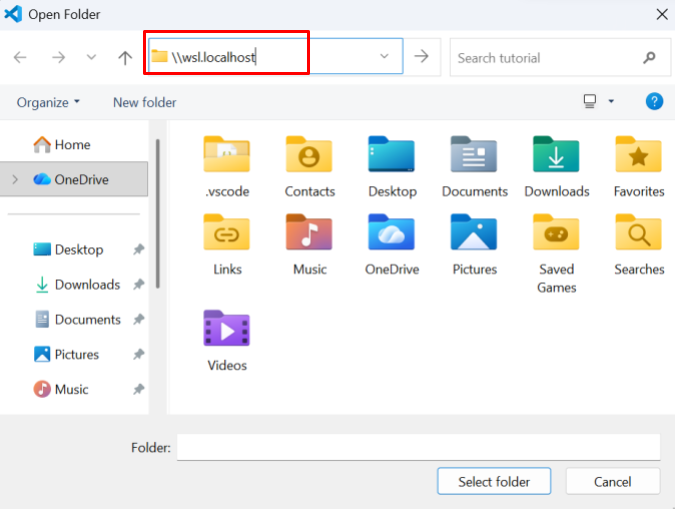
The File Explorer will open up. In the file picker's
address bar, type:
Windows path
\\wsl.localhost
Navigate to your home directory: Ubuntu → home →
[your username]
Choose the folder you want to work on in VS Code. In
this case we'll choose "workshop"
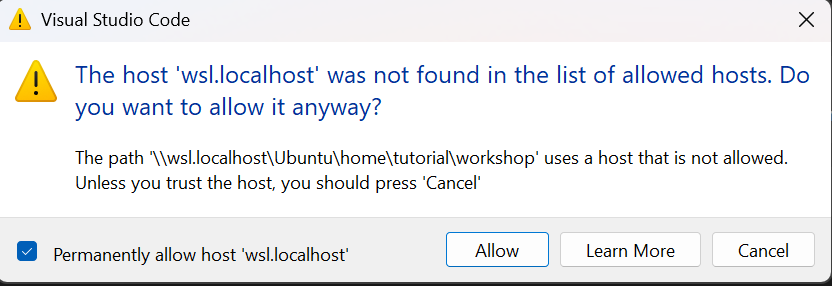
Finally, trust Ubuntu (and make sure to check the box
to permanently allow wsl.localhost)! VS Code will show
one or more prompts asking if you trust
wsl.localhost. Accept all of them. After
that, VS Code can fully access and edit files in your
Ubuntu environment.
In VS Code, hold Ctrl + Shift + P
to open the Command Palette.
Search for "Terminal: Select Default Profile"
Choose the default terminal you want to use, which in
this case will be WSL.
Once set up, you can launch VS Code on any file directly from
Ubuntu/WSL, or any terminal, by running it with the command
code filename. Try it with
code workshop.txt
✦ Quick Check
If you wanted to change the terminal in VS Code back to PowerShell, how
would you do that?
Answer correctly to unlock the
next section.
SUMMARY
WSL allows you to run Linux
What we did was:
Install Windows Subsystem for Linux
Use WSL as Ubuntu, and practiced using the Ubuntu (bash)
terminal
Set up VS Code to be able to access your Linux Virtual Hard
Disk
Set up VS Code's terminal view to use WSL/Ubuntu
Remember, your Linux files are located (and completely) contained
on the Virtual Hard Disk side! If you use Linux to develop things
but need access to your Windows files, you should probably do some
research on that.
When should I use WSL?
Web Development: which are often built with
Linux in mind
Open source projects: most are written with
instructions for Linux/Mac
Data science and ML: Python, Jupyter,
PyTorch, etc. all work more smoothly in a Linux environment
Learning systems programming or CS fundamentals
When should I develop in the Windows side?
Building Windows desktop apps (WPF, WinForms, UWP)
Anything using Windows-specific APIs or the registry
Game development with engines like Unity or Unreal, which have
native Windows tooling
.NET development (though this has become more cross-platform
in recent years)
✦ Final Check
Which of the following correctly summarizes WSL's purpose?